Masks and Tracking
-
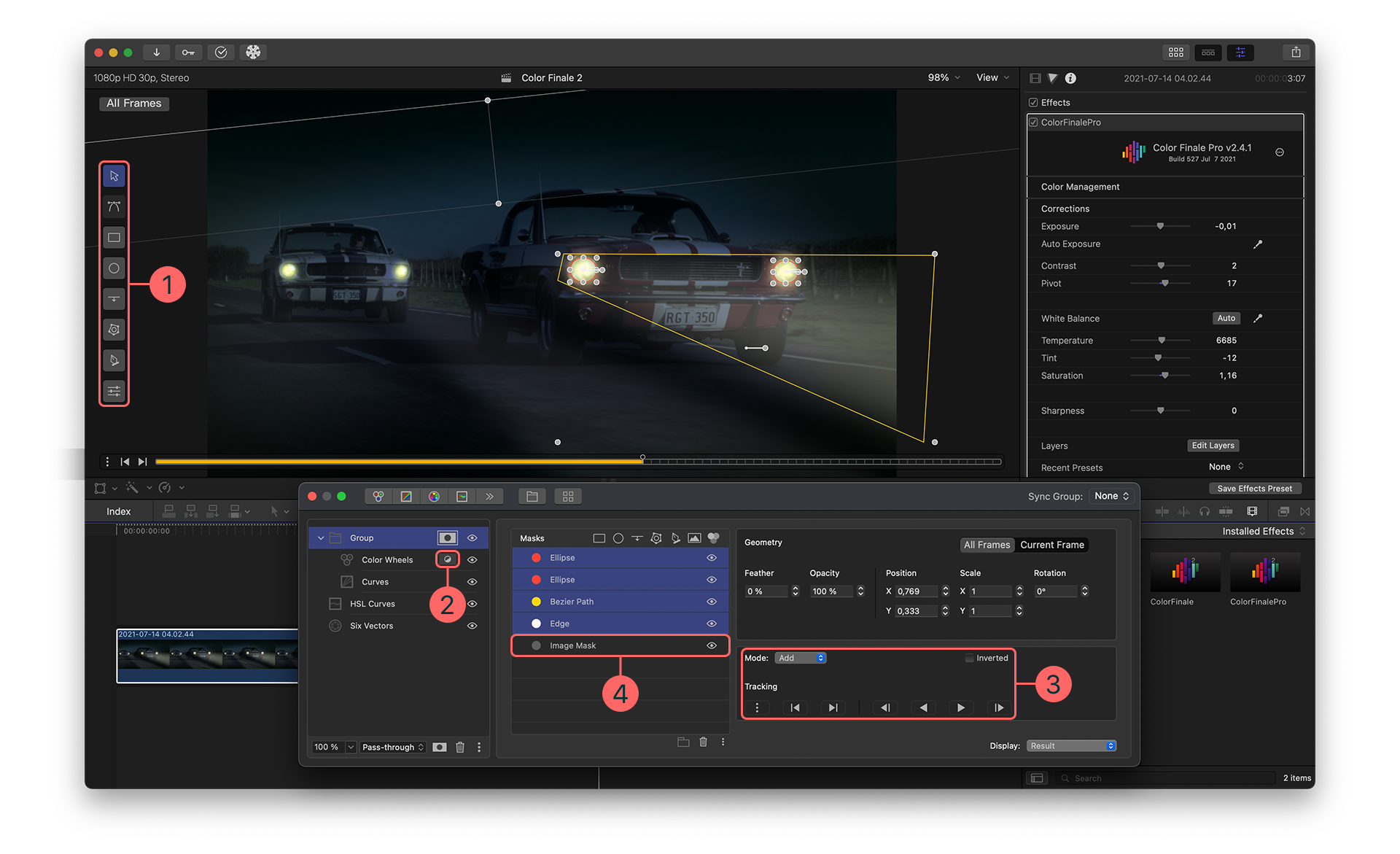
Shapes Panel
-
Invert parent mask (Inside/Outside)
-
Tracking Controls
-
Image Mask
The key to achieving complex grades is a sophisticated masking system Color Finale 2 includes shape, gradient, and image masks. You can apply grades inside and outside of these masks. Shape masks can also be tracked with a built-in area tracker. To apply a mask, select a layer and click the Mask button at the bottom of the panel. This applies a Mask icon to that layer. Click on that icon to enter or exit the mask controls.
Publish mask
To use this feature, after adding and creating or generating a mask, right click on the layer or group and select ‘Publish Mask’.
Once the mask is published you can decide whether you want a cutout or just the mask itself. Find the options in the inspector.
Combining with Final Cut Pro Masks
Color Finale 2 masks can be combined with Final Cut Pro’s built-in masking tools, including the Magnetic Mask. You can use FCP’s AI-powered Magnetic Mask to automatically detect and isolate subjects, then combine it with Color Finale’s own trackable shape masks, HSL masks, and person masks for even more precise selective grading. This lets you leverage FCP’s subject detection alongside Color Finale’s advanced color correction tools — all within a single workflow.
An FCP Auto Mask can also be fed into Color Finale as an external mask, where it can drive any layer or effect.