Color Management
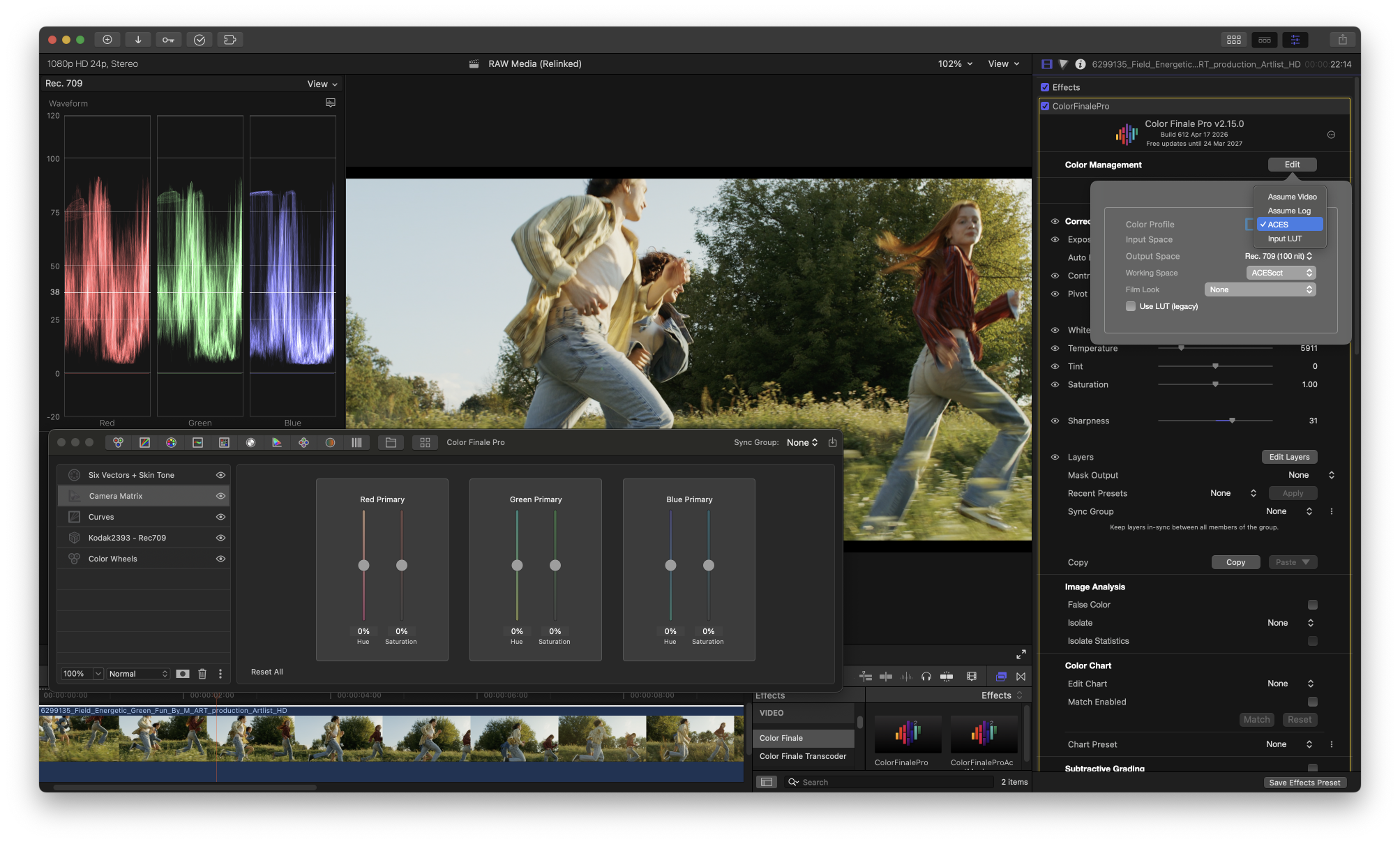 Set the initial Color Profile for the clip using one of the following settings:
Assume Video
Select Assume Video for clips that are already in a color space which matches the library and project color space values. This would typically be Rec. 709 for SDR (standard dynamic range) content. Assume Video is the Color Finale 2 default and means that the filter will not change the existing color profile of the clip. This option should also be used when you have already added a LUT to the clip in the information section of the Final Cut Pro inspector. For example, if you have an ARRI ALEXA camera clip recorded in Log-C and have applied the default LogC-to-Rec709 LUT in the inspector, then the Color Finale 2 color profile should be set to Assume Video.
Assume Log
Select Assume Log when a clip has been recorded in a log color space and you don’t know which camera or type of log space was used. Color Finale 2 will make a “best guess” calculation and convert the clip into the color space defined for the library and project. Do not use Assume Log if you have already applied a LUT in the inspector or as an effect upstream prior to th Color Finale 2 effect.
ACES
Select Use ACES when you would like to use ACES color management on a clip. ACES (Academy Color Encoding System) is an open source color space developed by a working group of the Academy of Motion Picture Arts and Sciences. The ACES color space is larger than all other color spaces and requires an input setting (IDT - Input Device Transform) and target output setting (ODT - Output Device Transform).
Input Space
The Input Space pulldown selects the camera-specific Input Device Transform for your footage.
IDTs are organized into submenus by manufacturer for quick access:
- Apple — Apple Log
- ARRI — LogC v3 (Alexa), LogC v4 (ALEXA 35)
- Blackmagic — BMD Film Gen 5 / Wide Gamut
- Canon — C-Log 2, C-Log 3, EOS, C100 Mark II, C300 Mark II (Log/Log2/Log3 variants)
- DJI — D-Log / D-Gamut
- Fujifilm — F-Log, F-Log2
- Leica — L-Log
- Nikon — N-Log
- Panasonic — V-Log / V-Gamut
- RED — Log3G10 / RED Wide Gamut
- Sony — S-Log, S-Log2, S-Log3, S-Log3 / S-Gamut3.Cine
Select Generic if your camera or log format is not listed.
Output Space
The Output Space pulldown selects the target display device. If you are working in a Rec. 709 SDR timeline and viewing Final Cut’s output on a video monitor, Rec. 709 100 nits would be the correct selection. Additional output transforms are available for P3, Rec. 2020, and other display standards.
Working Space
Choose between ACEScct and ACEScc as your working color space. ACEScct is the default for new projects and is recommended for most workflows — it uses a hybrid linear+logarithmic transfer function that provides better precision in shadow regions, resulting in smoother adjustments in the low end. Existing projects continue using ACEScc for backward compatibility.
GPU Rendering
By default, the ACES rendering pipeline (RRT+ODT) is computed per-pixel on the GPU. This produces smooth, artifact-free results across the full tonal range. A Use LUT (legacy) checkbox is available to switch to the previous rendering path, which may be useful for matching existing projects graded with earlier versions of Color Finale.
LUTs in ACES Mode
When ACES is fully configured, you can apply creative LUTs within the ACES pipeline. LUTs are applied in a color-space-aware manner: your working space is converted to the LUT’s expected space, the LUT is applied, and the result is converted back to the ACES working space. This preserves ACES color accuracy while giving you access to your existing LUT library.
Film Look
o The Film Look popup applies an emulation of a real photochemical print stock to your ACES grade. The emulation runs in the working space, before the RRT and ODT, so the film character is faithfully carried through to the final display transform.
Eight stocks are included — seven color prints and one black-and-white print:
- Kodak 2383 — classic Hollywood release print (warm, saturated)
- Kodak 2393 — higher-contrast Vision Premier print
- Kodak 2302 B&W — black-and-white print stock
- Fuji 3510 — low-contrast Eterna-CP print
- Fuji 3513 — standard Eterna-CP print
- Fuji 3519 — higher-contrast Fuji print
- Fuji 3521 — modern Fuji print stock
- Agfa CP30 — Agfa color print
Each stock ships with a fixed strength so it sits naturally on top of an ACES grade without requiring further tweaking. For a stock-by-stock description and usage tips, see the Film Look section.
Input LUT
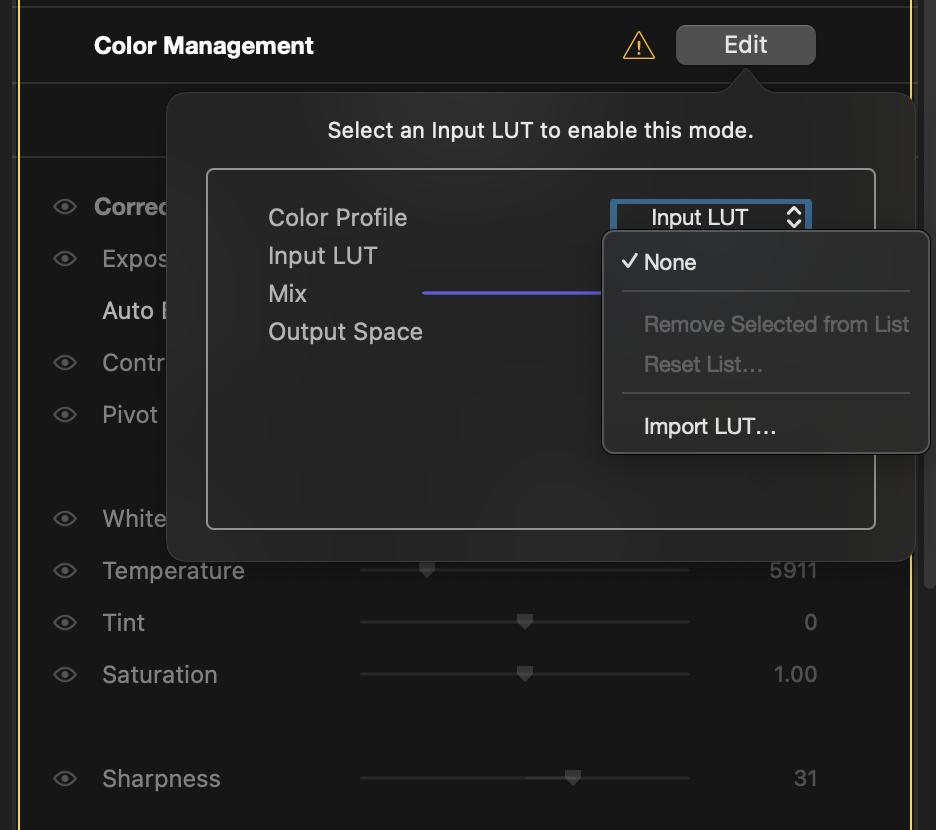
Select Use Input LUT to import and apply any technical camera or creative LUT for your color profile. The .cube LUT format is supported and, when selected, controls the color management for that clip. Once you select Use Input LUT for the color profile, additional controls appear. Use the Input LUT pulldown to choose from previously used LUTs or import a new LUT from any connected hard drive. The Mix slider controls the percentage of the LUT color that is being applied. The Output Space selector lets you choose the proper color space for this LUT, in order to match your library and project settings.
Managing Input LUTs
Over time, your Input LUT list may accumulate entries you no longer use. Two management options are available:
- Remove Selected from List — removes the selected LUT reference from Color Finale’s list. The original .cube file on disk is not deleted.
- Reset All — clears all imported LUT references and restores the list to its default state. Original files on disk are not affected.
A confirmation dialog will appear before either action is performed.